
Your profile and account security
The Profile screen (user menu → Profile) is yours, whatever your role: nobody else can change what is on it, and every role has all of it. The organization's roles decide what you may do in an organization; this is about you — how you sign in, on which devices, and what is held about you.
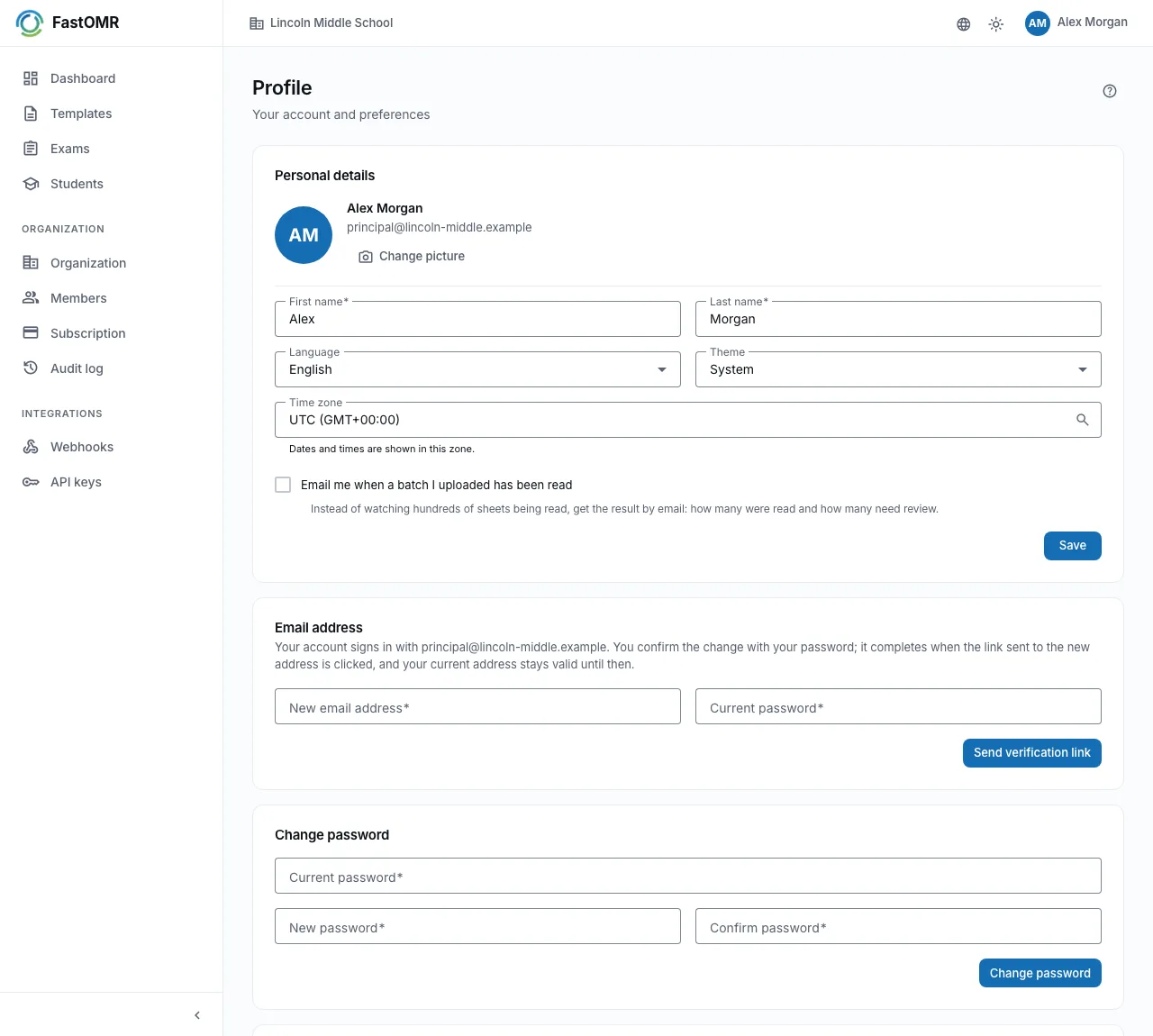
Personal details#
- Name and picture. Change picture takes a PNG, JPEG or WebP of up to 2 MB. Your name is what colleagues see in the members list and the audit log.
- Language and theme. Chosen here or from the icons at the top; they belong to your account and follow you to every device. The theme is System (the device's own), Light or Dark.
- Time zone. Dates and times are shown in it; it starts as the organization's and is found by typing.
- Email me when a batch I uploaded has been read. The one message the product sends that you can switch off and keep your account. When a stack of hundreds is read, the mail says how many sheets were read and how many wait for review, and the link goes straight to that exam's waiting sheets. It carries an unsubscribe header that mail programs offer as their own button, and the address to write to.
E-mail address and password#
- E-mail address. Enter the new address with your password on the Email address card; a verification link goes to the new address and a notice to the old one. The move completes when the link at the new address is opened — until then you keep signing in with the old address, and you can cancel the pending request from the same card.
- Change password. The current password, then the new one twice, under the rules of §2. A wrong current password is refused as "the password is incorrect". Changing it signs every other device out.
Two-step verification#
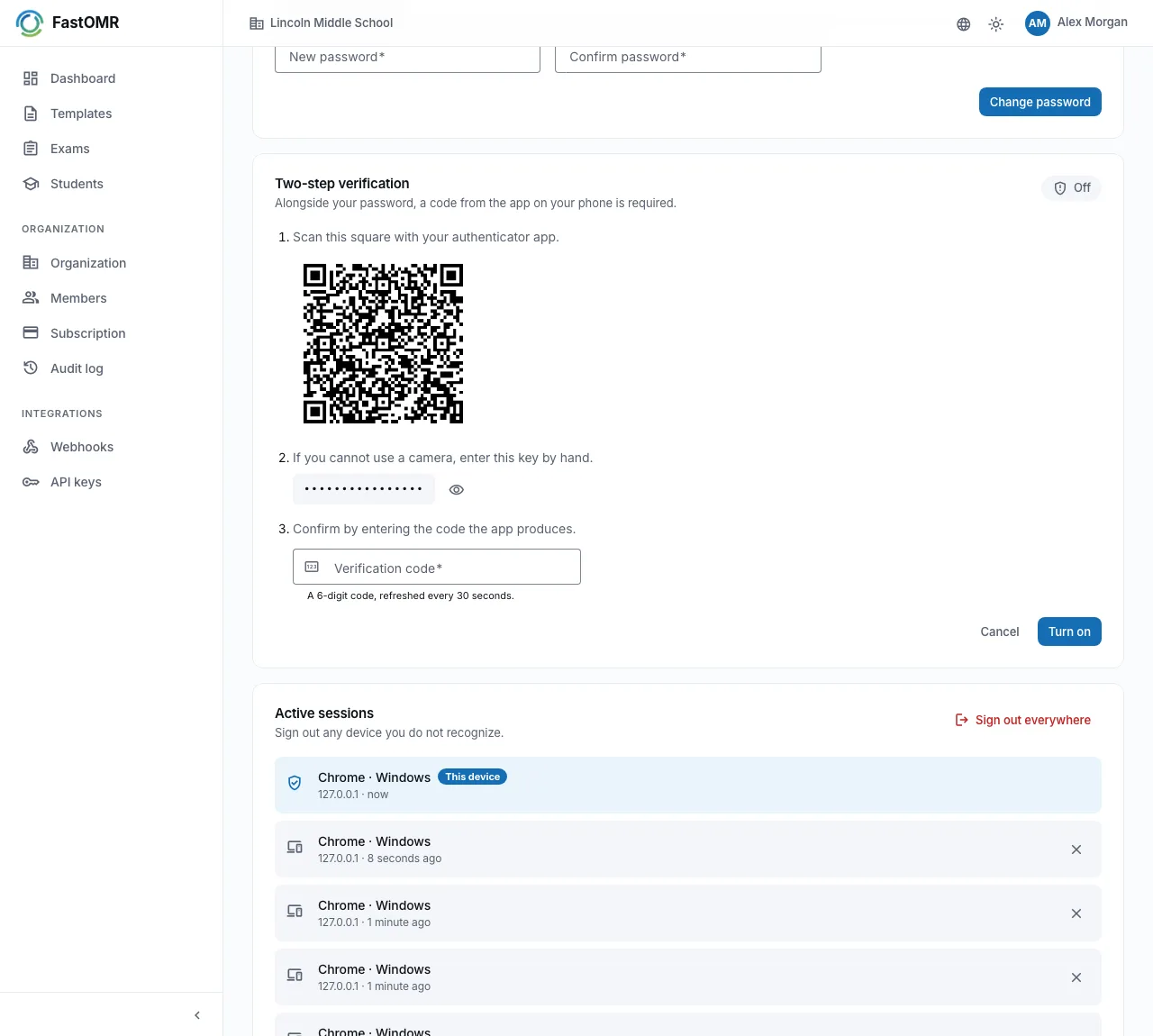
- Turn on, then scan the square with your authenticator app — or, with no camera, type the key by hand.
- Confirm by entering the code the app shows.
- Save your recovery codes. Ten single-use codes are shown once; copy or download them and keep them somewhere safe. They are the only way back in if you lose the phone; the screen asks whether you have saved them before it lets them go.
At sign-in the second screen takes the app's code, or, with Use a recovery code, one of the saved ones — each works once, and the card shows how many are left. Generate new recovery codes replaces the set (it asks for your password), and Turn off asks for it too and deletes the codes. You are e-mailed whenever the second step is turned on or off or the codes are renewed, so that a change you did not make is noticed. If you lose both the phone and the codes, write to whoever runs your installation — Contact support in the user menu. A system administrator, after confirming who is asking by another channel (a call to your school, to your organization's owner), can turn the second step off for you; that ends every session and mails you a notice, and you can turn it on again from your profile. The platform's own staff are required to use it.
Your devices#
Active sessions lists every device you are signed in on — browser and system, when it was last used, and which one is This device. Sign out on a row ends that device's session; Sign out everywhere ends them all, this one too. Do it for a device you do not recognize, or one you left signed in somewhere.
Your data#
- Download my data. Your profile, memberships, sessions, activity history and the terms you accepted, as one JSON file — the answer to "what do you hold about me". It is generated in the browser, not left as a link.
- Delete my account. Asks for your password. The account is closed at once — sessions ended, memberships removed, and the keys, invitations and webhook endpoints you made in your organizations stop working — and your personal details are permanently removed after 30 days; it cannot be undone. Templates and exams you made stay in their organizations. If you own an organization that has other members, you are asked to transfer ownership first; if you are its only member, it closes with your account.
Last updated:
Could not find what you needed? Write to [email protected] — tell us the screen and what you expected to happen.