
Students
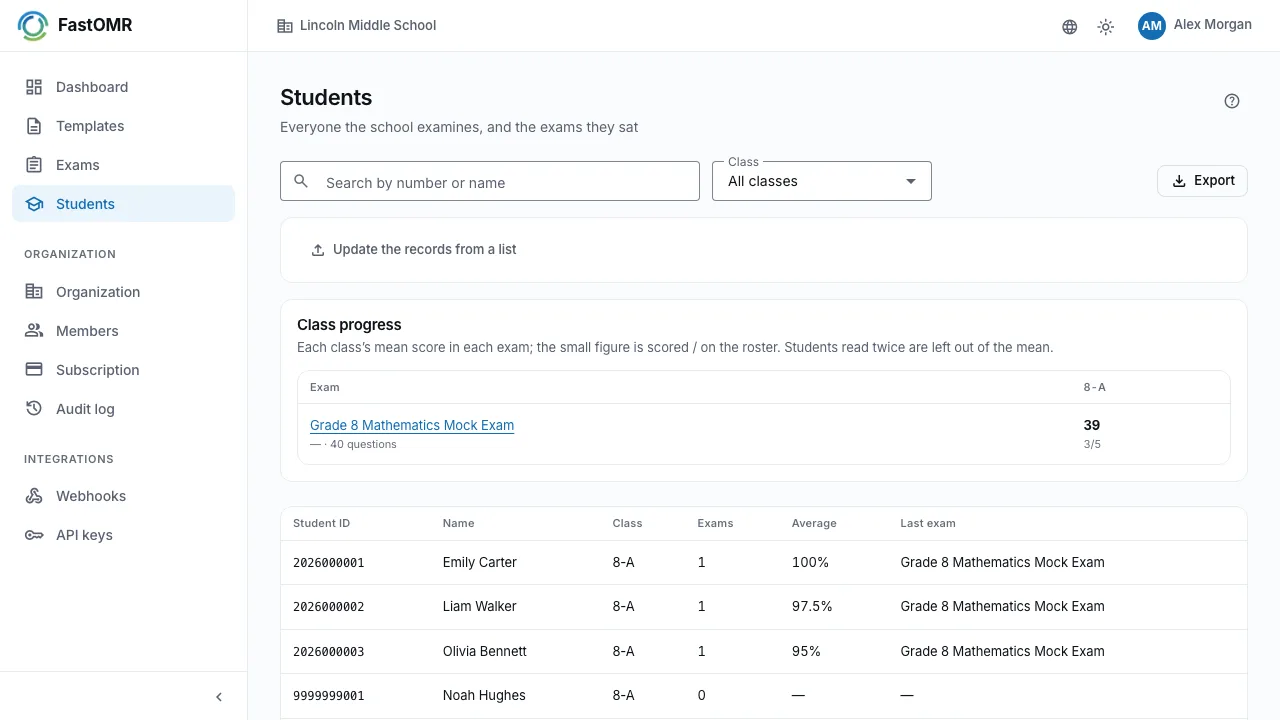
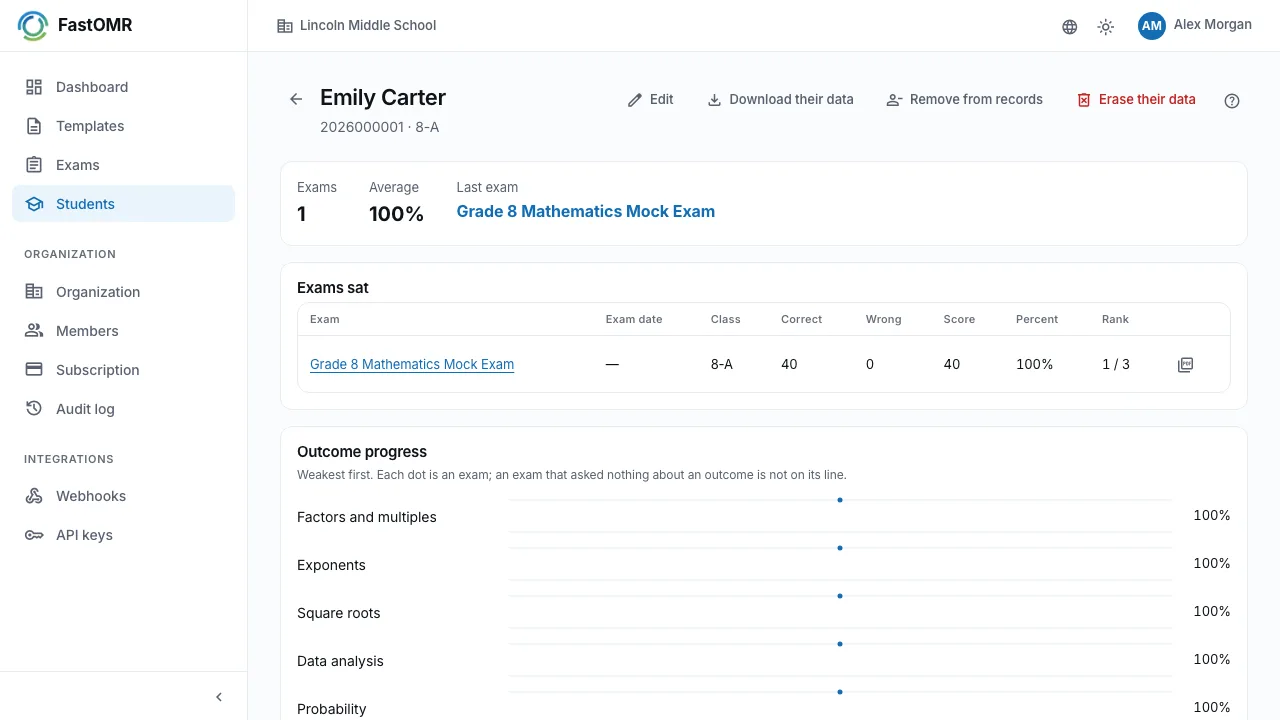
The exam screens show a single day: who scored what in that exam. The Students screen does the opposite — it takes one child and puts every exam they sat side by side. Students gather here by themselves when you load a roster into an exam; there is no separate record to open.
Correcting the record#
The records gather from rosters; for a name mistyped in a file or a section that changed mid-year you need not wait for the next file. Edit on the student's page brings the name and class up to date; the number cannot be changed — the sheets carry it and every result matches on it; a record opened under a wrong number is not corrected, it is deleted. Finished exams keep their rosters with the class the student sat in that day: a section change in March does not alter January's class ranks. With Apply to open exams' rosters too ticked, the student's row in exams not yet closed is updated and those exams are rescored; the results screen shows the new name and class within a minute. What changed is written to the audit log.
September: updating the records from one file#
In the new year everyone moves up a class, the leavers go, the new enrolments arrive — the school list your information system exports says all of that in one file. Update the records from a list on the Students screen writes that file (or a pasted list) to the records only: classes are updated, new students added, no exam's roster is touched. The preview, the column mapping and the problem rows are the same as for an exam roster. The way a number is written does not split a record in two: a student written "1023" in the file and "0001023" in the previous list is one record and keeps the latest spelling; a number that appears twice in the same file in two spellings is shown in the preview as "Duplicate number" with its line number. Class names are written one way too: "9/A", "9 A" and "9a" all become "9-A", so the filter never shows two 9-As; a name it does not recognize, "Science 9-A" say, stays as written. The Remove students the list does not name from the records box is ticked when the file is the whole school: leavers and transfers out leave the records; the confirmation shows how many students the file counts and how many the records hold, side by side. If the file is a single year group, leave the box empty — or the other year groups leave too.
Leavers: a class or a student#
It works without a file too. If graduated sections and students who transferred out stay in the records, Add from records puts them on next year's roster and the exam fills with "absent" rows. With the class filter set to one section, Remove class … from the records appears and takes that section out of the school's current list — one click each for 12-A, 12-B, 12-C in June. For a single student, Remove from records on the student's page does the same. This is not deletion: the rosters, results and papers of the exams they sat stay as they are, report cards and results screens do not change; if the number comes back on a list one day, the record reopens with the old results still beside it. Erasing their data is a separate operation, described below.
Gaps in the line
On an outcome's line every point is an exam. An exam that asked nothing about that outcome is not on the line. A line drawn dropping to zero would make an outcome that was never asked look forgotten.
Handing over and erasing a student's data#
When a parent or a student asks "what do you hold about me", Download their data on the student's page downloads everything held as one file: identity, the exams sat, the answers and the scores. It is downloaded rather than shown on screen for a simple reason — the answer to such a question should be something the other side can keep.
Erase their data cannot be undone and appears only for the admin and owner roles. The student's identity, results and scanned paper images are erased. The confirmation says so too: the averages, item statistics and other students' ranks in the exams that student sat change after the erasure. That is not a side effect, it is the direct result of the operation — the data is not hidden, it is really gone.
Last updated:
Could not find what you needed? Write to [email protected] — tell us the screen and what you expected to happen.