
Creating an exam
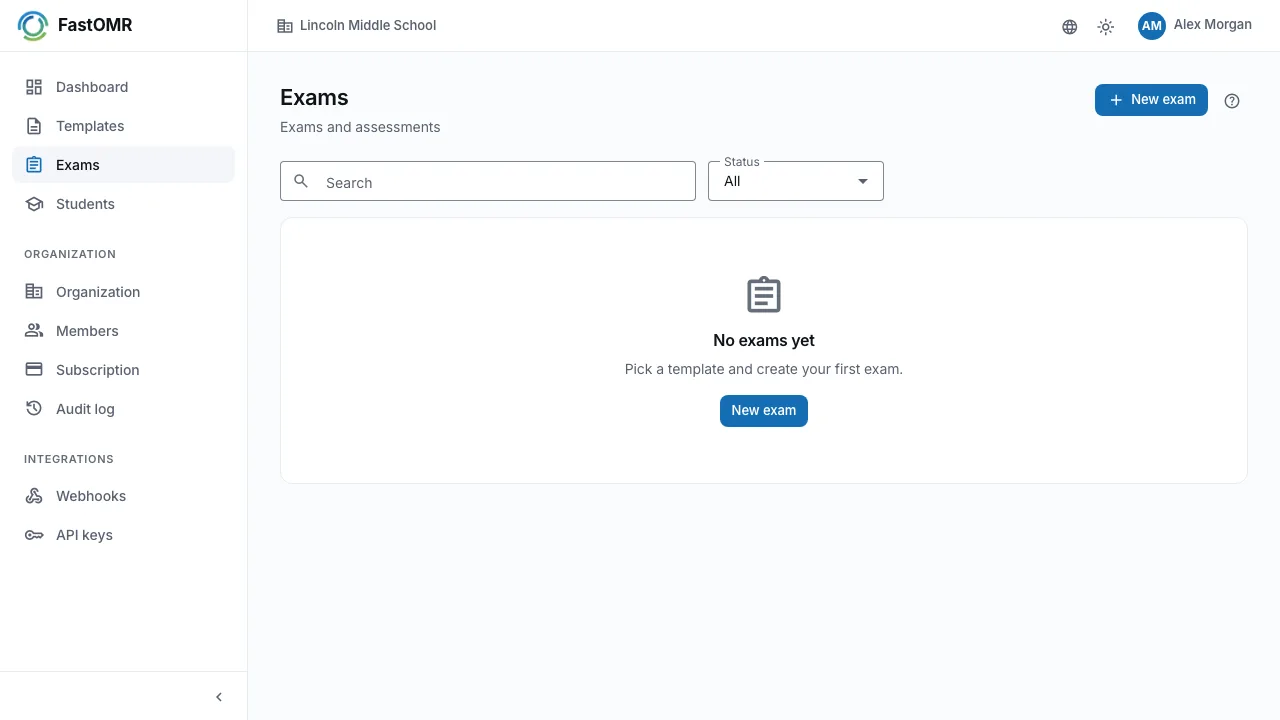
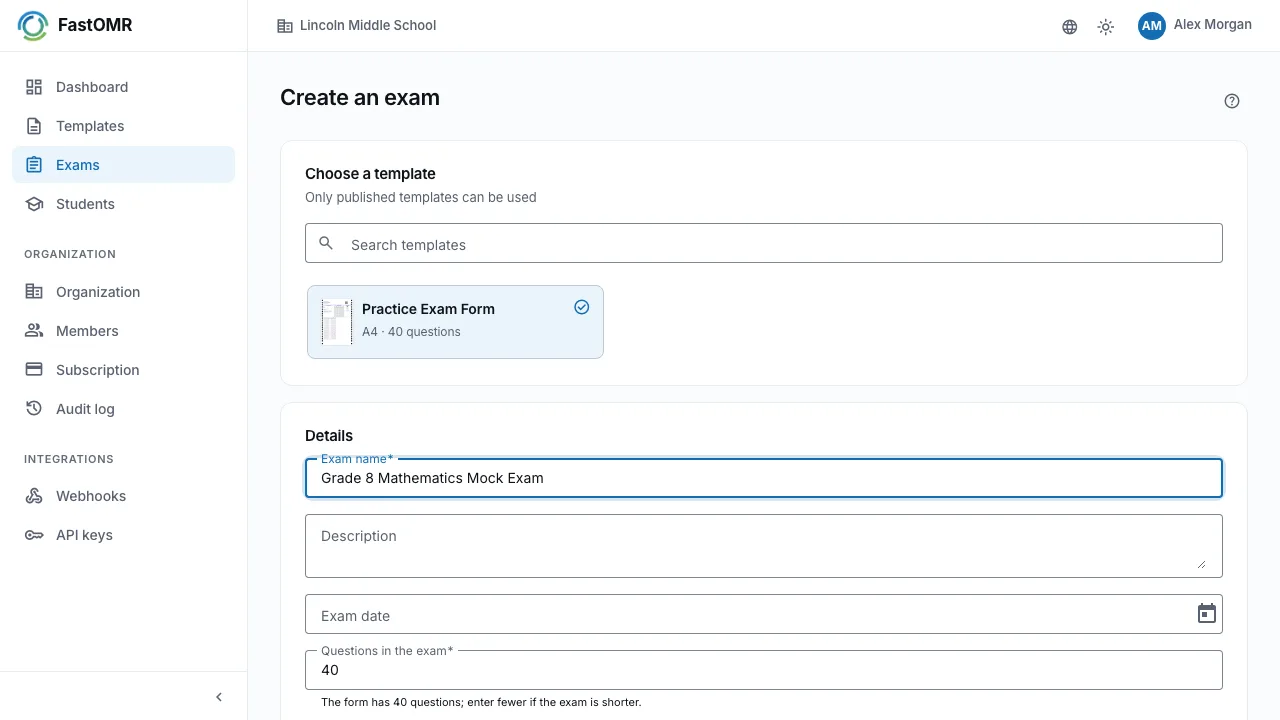
When the sheet is longer than the exam
A school prints one standard sheet — 40, 50, 100 questions — and sits every length of exam on it. In the Questions in the exam box that appears once the template is chosen, enter the exam's real number of questions (25 on a 40-question sheet, say). The answer key asks for that many questions, the sheet's remaining rows are neither scored nor shown in the results, and the empty rows do not send the paper to review as "mostly blank". The number follows the sheet's numbering and can be changed later in Settings; the exam is rescored when it changes.
The exam's life cycle#
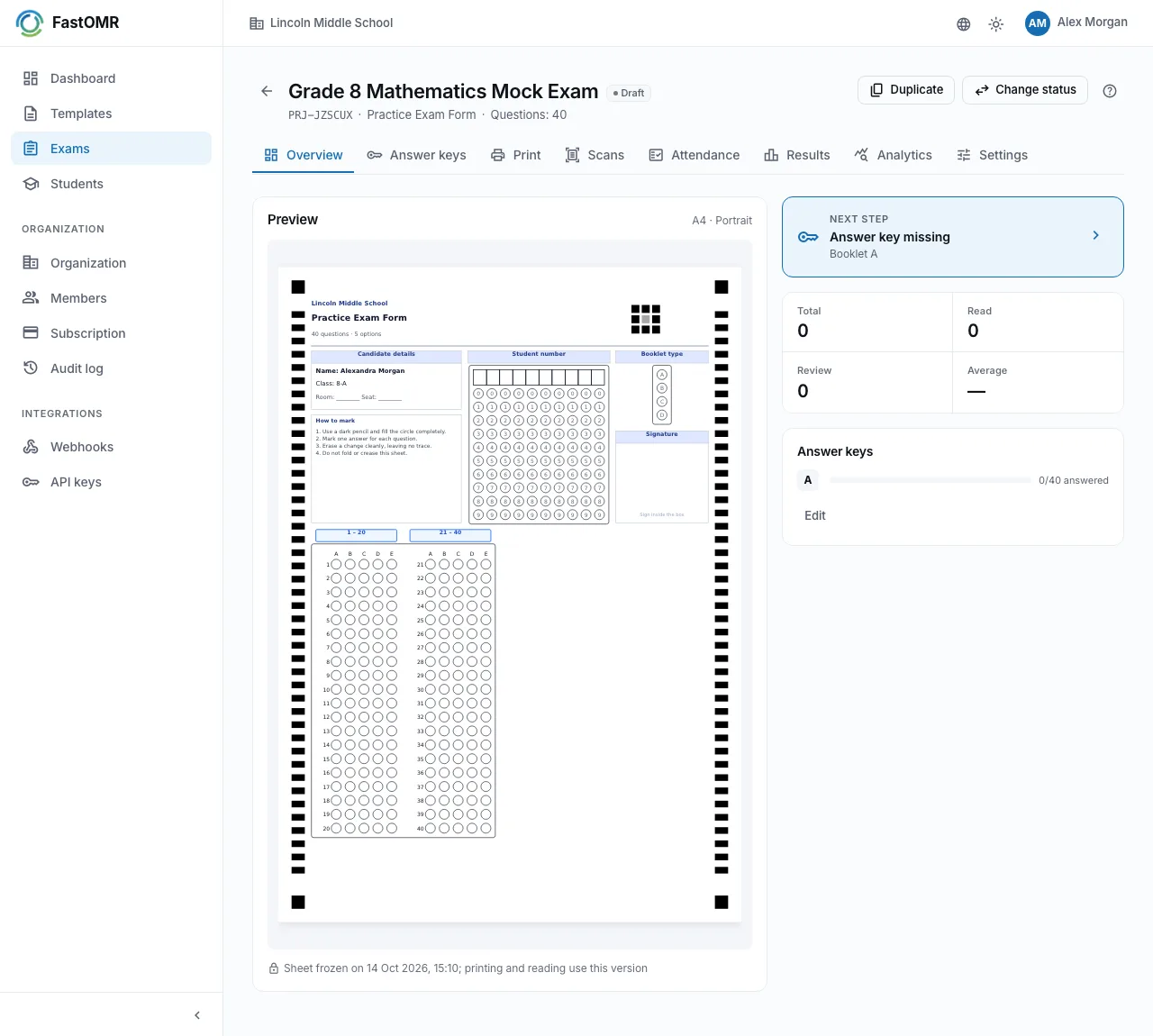
An exam has a status, which says what the exam accepts right now. In the ordinary course you do not change it: printing the sheets takes the exam from Draft to Ready, and uploading the first scans — when the answer key is complete — to Collecting. What is left to you is moving it to Closed when the papers are in, or to Archived at the end of the term, with Change status at the top of the exam's page. Each move is one step:
| Status | What it means | Moves to |
|---|---|---|
| Draft | The exam is being prepared: settings, answer keys and printing are open. Printing the sheets, or uploading the first scans, moves it to Ready on its own. | Ready, Archived |
| Ready | Ready to print; scanned sheets are accepted. | Collecting, Draft, Archived |
| Collecting | Accepting scanned sheets. The exam cannot move here while a booklet's answer key is incomplete: sheets that could not be scored would pile up unnoticed. From then on every question keeps an answer; one that should no longer count is cancelled. | Closed, Archived |
| Closed | No longer accepting sheets; review, results, analysis and exports carry on. Reopen it to add a late paper. | Collecting, Archived |
| Archived | Read only: it can be looked at, not changed. Move back to Draft to work on it again. | Draft |
An exam can also be deleted (by an admin): it is kept for 30 days with its sheets, keys and results. Undo on the notice brings it back at once; afterwards, choose Deleted in the list's Status filter and Take back. Either way it returns as it was, in the status it had. The plan limits how many exams may exist at once (§10). Each exam holds its own frozen copy of the sheet from the day it was created — the Overview says when — and printing and reading use that copy, so editing the template afterwards never disturbs an exam in progress.
Subjects and scoring
In the Settings tab you can divide the exam into subjects (1–15 English, 16–30 Mathematics, say). Whether wrong answers cancel right ones, how blanks are treated and cancelled questions are set there too. Cancelled questions count as correct for everyone. When questions do not carry equal points — the first ten worth four each, the rest six — make each group a subject and enter the points per question in its Weight field: the total score is each subject's score multiplied by its weight, added up (with one point per correct answer, a subject's score equals its net; ten fours and ten sixes make 100). With Normalize to 100 on, each subject is first scaled to 100 and the weights are read as proportions — English 0.6 and Mathematics 0.4, say.
A pass mark
Pass mark (%), also in Settings, is the share of the exam's maximum score a result must reach to pass — 70 for a certification, 50 for a school's threshold. With one set, every result gains a percentage and a Passed or Failed verdict: the Results list shows both and filters by them, the head of the Results and Analytics screens says how many passed, the exported file carries the two columns, and the report card prints the verdict. Left empty, none of it appears and the exam is scored as before. Changing the mark rescores nothing: the percentage is worked out from the score each time it is shown.
Every setting on the Settings tab#
| Setting | What it does |
|---|---|
| Basics | The exam's name and date, its booklet codes (A, B, … — removing one deletes its answer key too), and Questions in the exam when the sheet is longer than the exam. |
| Points per correct, per blank | What a right answer and a blank are worth: 1 and 0 to begin with. A blank can be given a share of a point, never more than a right answer. |
| Penalty mode | No penalty; a fixed penalty per wrong answer; or net scoring, where a number of wrong answers (4 by default) cancel one right one. An organization set to Turkish starts new exams with the Turkish "net"; everywhere else a new exam scores the number of right answers, and a school that wants a penalty says so here. Where nothing is deducted, the "net" column is left out of the results and the report cards, as it would only repeat "correct". |
| Multiple marks | A question with two options marked counts as wrong, as blank, or is sent to review. |
| Cancelled questions | Correct for everyone (the default) or Excluded from scoring — taken out of the maximum as well. |
| Clamp negative score to zero, Normalize to 100 | Whether a heavily penalised paper bottoms out at zero, and whether the score is scaled to 100 (with subjects, each subject is scaled first). A line under the card works the rule on one paper as you change it — 30 right, 8 wrong and 2 blank out of 40, say: the net and the score and, with a pass mark set, whether it passes — by the same arithmetic the scoring uses, so you see what the rule does before you save it. |
| Subjects, Learning outcomes, Pass mark | As described above. A subject cannot overlap another, and with subjects every question must belong to one. |
| Recognition | How sensitively the marks are read. Filled threshold (0.45): a bubble filled above this share counts as marked — lower it for faint pencil. Blank threshold (0.18): below this share it is definitely blank — raise it for dirty scans; it must stay below the filled threshold. Auto-accept confidence (0.8): a sheet the system is less sure of goes to review; raising it means more review work and more safety. Clean scan noise tidies stray specks. The defaults suit black pencil at 200–300 DPI. A change applies only to sheets read from then on; to apply it to sheets already read, use Reprocess on the Scans tab. |
Last updated:
Could not find what you needed? Write to [email protected] — tell us the screen and what you expected to happen.