
Signing up, signing in and the dashboard
Accounts are opened by invitation; nobody signs up on their own. There are two ways in. Someone invited by an organization opens the link in the e-mail and creates their account — or, with one already, signs in — and joins it. A new customer is added by the platform's staff — the organization, its plan and its owner together: the owner gets a Set your password e-mail, and once the password is set they are signed in to their organization. There is no sale and no sign-up on the product for now; the sign-up page opened without an invitation says that accounts are opened this way and leads back to sign-in.
Creating an account#
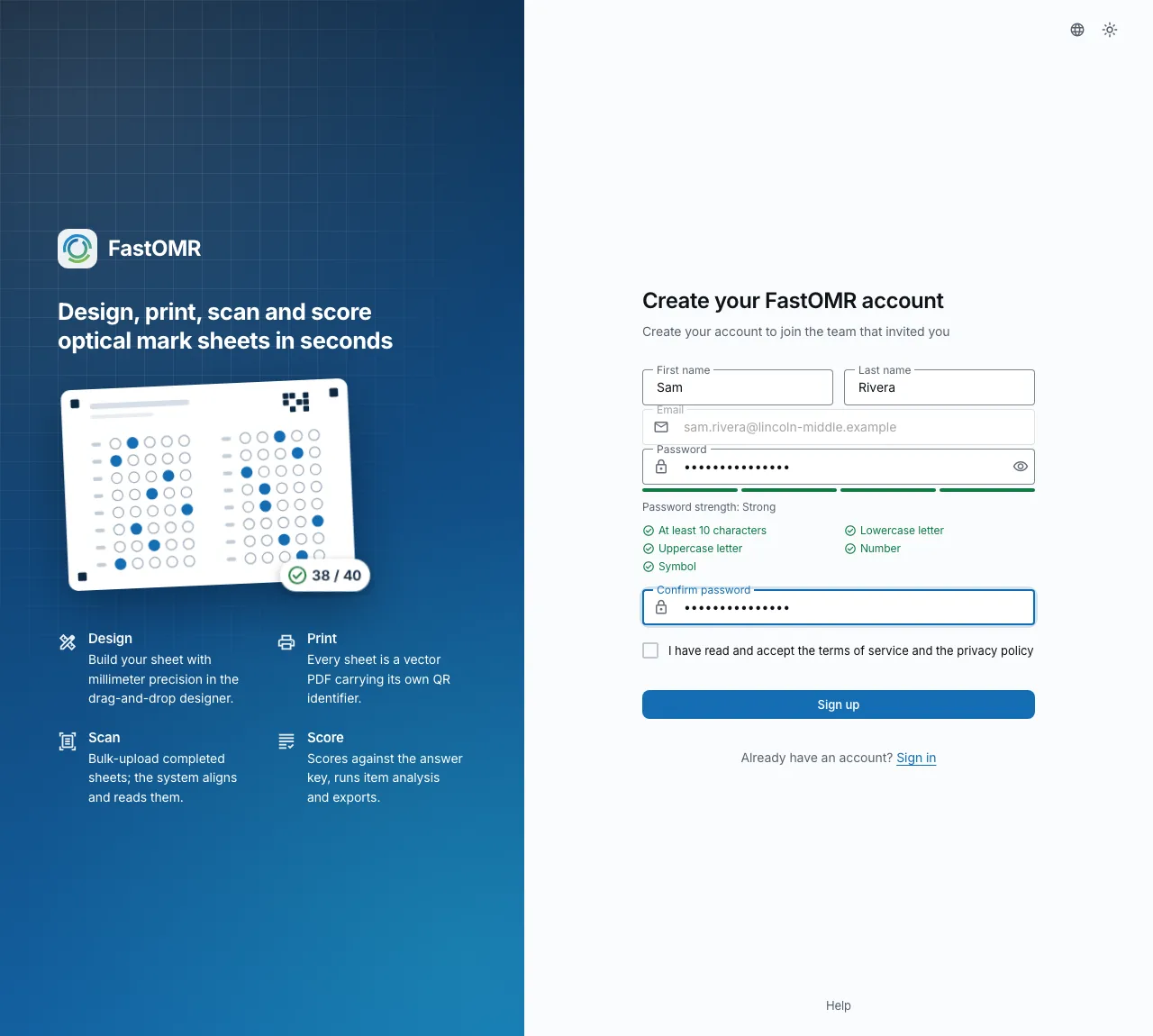
- Your first and last name; the e-mail address is the one the invitation was sent to.
- A password, twice: at least 10 characters, with an upper-case and a lower-case letter, a digit and a symbol. A password on the lists of the most common ones, or one built on your name, your e-mail address or the product's name, is refused with the reason under the field — the same rule applies whenever a password is set or changed.
- The tick for the terms of use and the privacy policy, which the form links. The account keeps which terms you accepted and when. Where the installation asks for it, a short "are you a person" check sits above the button.
Someone who accepts an invitation verifies nothing: the invitation was sent to their address, and that proves it is theirs. An account opened by the platform's staff is the same: the Set your password link went to the address, and setting the password opens the account. That page also asks you to accept the terms of service and the privacy policy — the box everyone else ticks when they create their account — and the password is not set until it is ticked. When the staff add an organization they answer Who takes your exams? for it — Students (a school, a course, a tutoring center) or Employees or candidates (a company, a public body, a certification center); the answer changes the words the product uses, not what it can do (§10), and the owner can change it later.
Signing in#
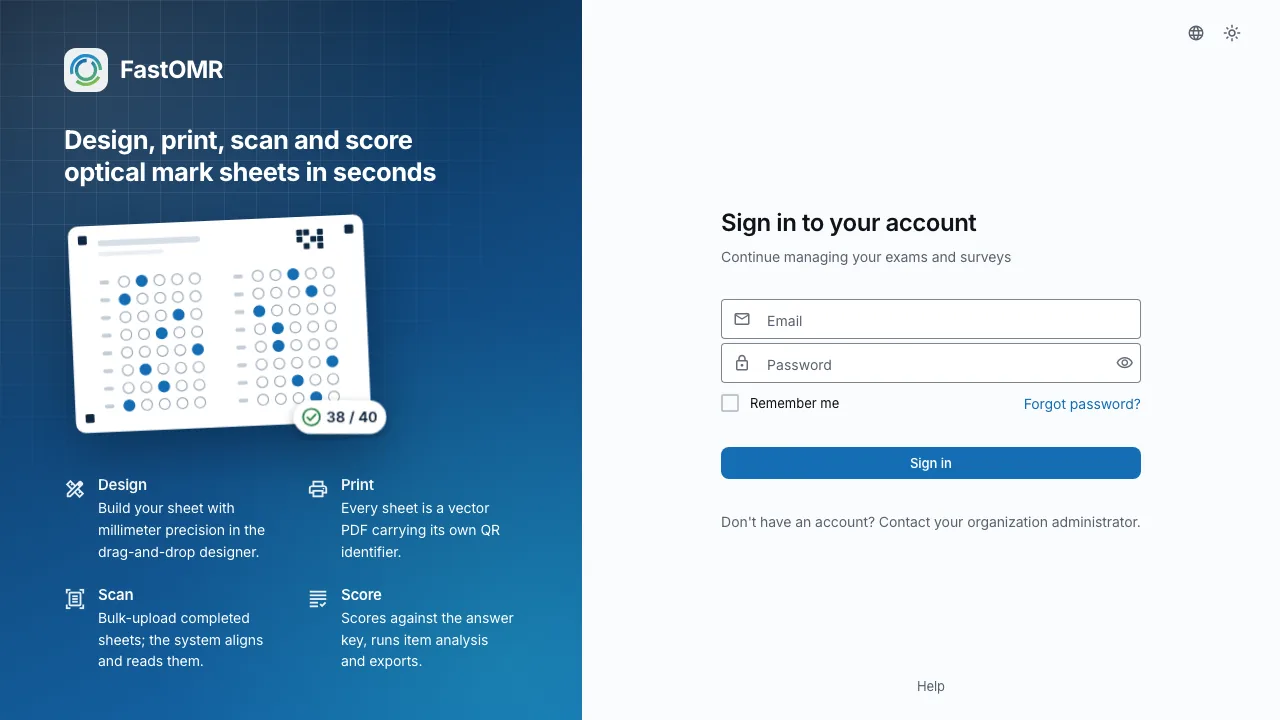
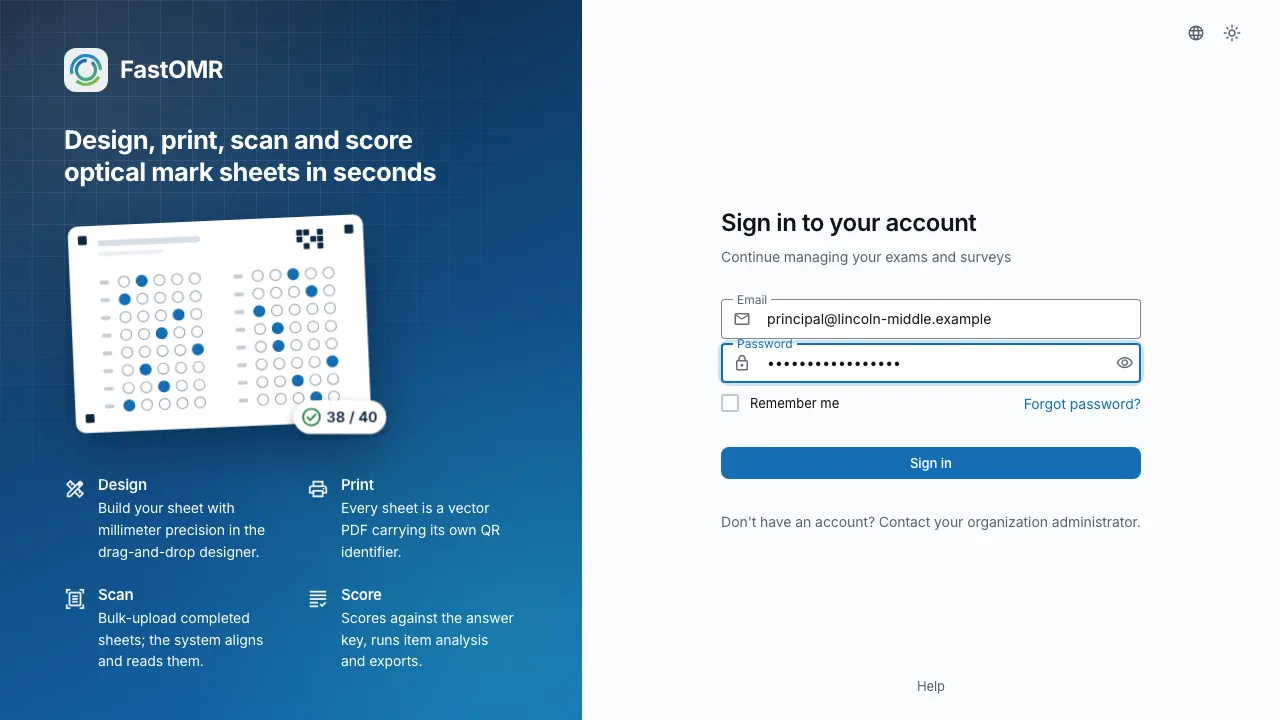
- A wrong password. Eight wrong passwords in a row lock the account for 15 minutes from where they were typed; the right one is refused there meanwhile, and the account's address is told (Appendix C). Forgot password? sets a new one and lifts the wait at once, and takes along the address you typed. (These numbers are the installation's defaults; whoever runs it can change them.) While Caps Lock is on, the password field says so under itself.
- Two-step verification. If you turned it on (§11), a second screen asks for the six-digit code from your authenticator app after the password — or, with Use a recovery code, for one of the codes you saved.
- Forgot password? e-mails a link valid for one hour. The screen answers the same whether or not the address is registered, so nobody can use it to find out who has an account. Choosing a new password signs every other device out. An account a system administrator created receives a similar link to set its first password.
- A session that ends mid-task. If your session ends while you work — you signed out on another device, the password was changed, the installation was updated — the page asks Sign in again as you@… right where you are, for the second step too if you use one. Nothing on the page is lost: a half-entered answer key or a review with its corrections is still there when you are back in. Only that same account can sign back in; Sign out leaves for the sign-in screen.
- No organization yet. An account whose only organization was closed, or one a system administrator created without one, opens on a dashboard that says so: ask your organization's administrator for an invitation. Organizations are added by the platform's staff.
The screen around you#
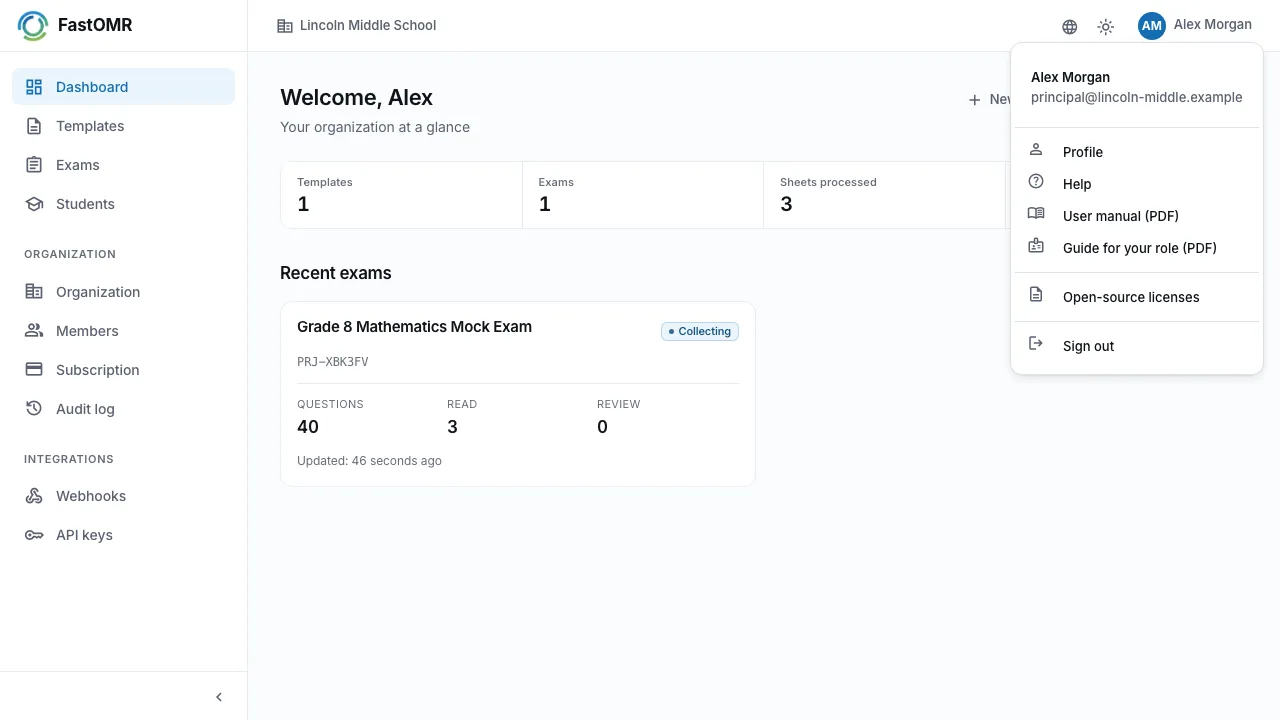
| User menu | What it does |
|---|---|
| Profile | Your name, picture, password, two-step verification, devices and data (§11). |
| Help | This guide as a page, in a new tab. The ? button at the top of every screen opens it at the chapter that speaks about that screen. |
| User manual (PDF), Guide for your role (PDF) | The printable guide, and the one written for your role. The platform's staff also see the System administration guide. |
| Contact support | An e-mail to the address the installation names; shown only where it names one. |
| Terms of use, Privacy policy, Open-source licenses | The texts you accepted at sign-up, and the licenses of what FastOMR is built on. |
| Sign out | Ends the session on this device. To end every device's, see Sign out everywhere in §11. |
Installing FastOMR as an app
The browser can install it: Chrome and Edge offer an install icon in the address bar, and on an iPhone or iPad Share → Add to Home Screen does the same. It then opens in a window of its own, on the dashboard, like any app. It is the same page and needs the same connection to the server — nothing works offline.
The dashboard#
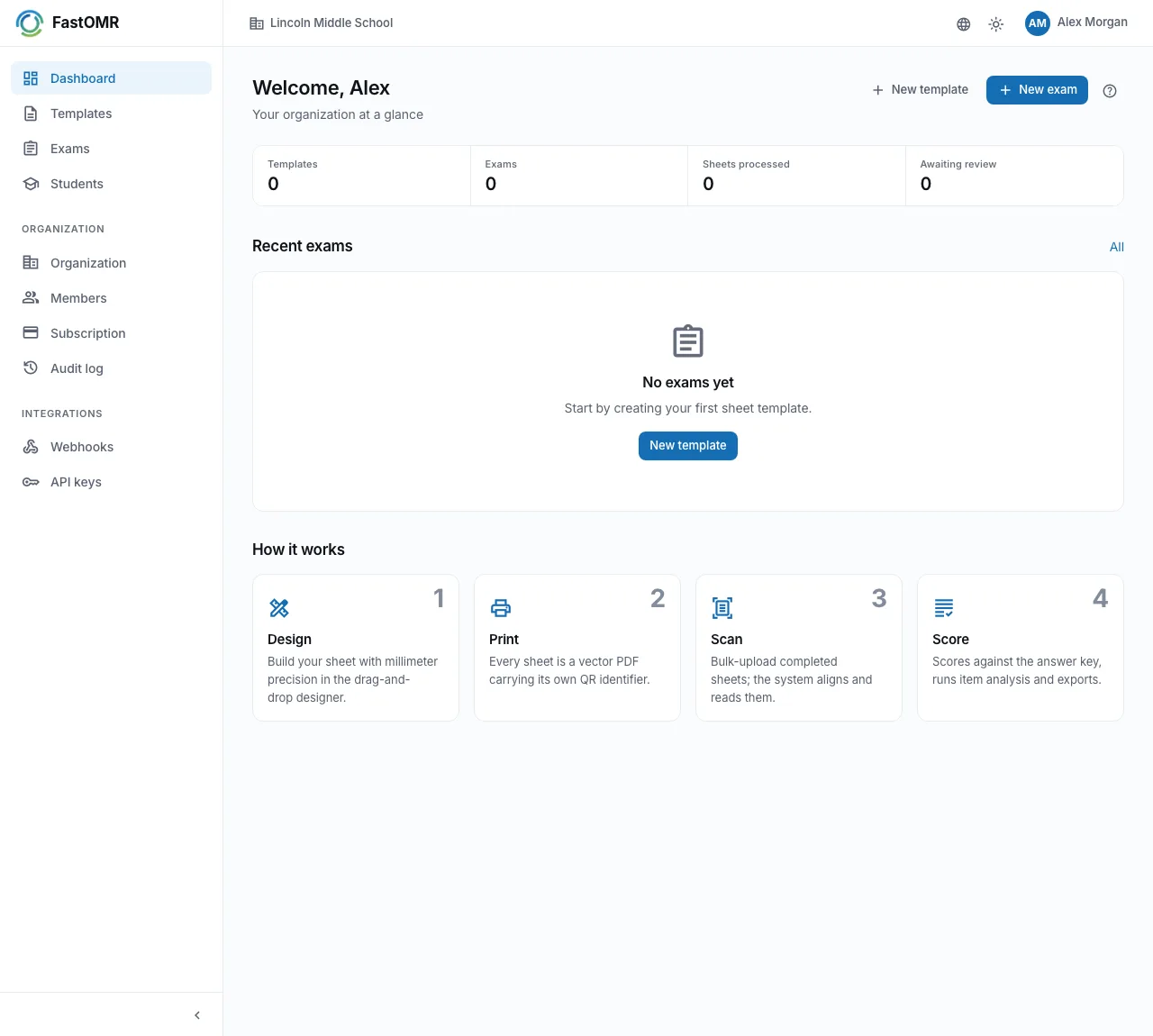
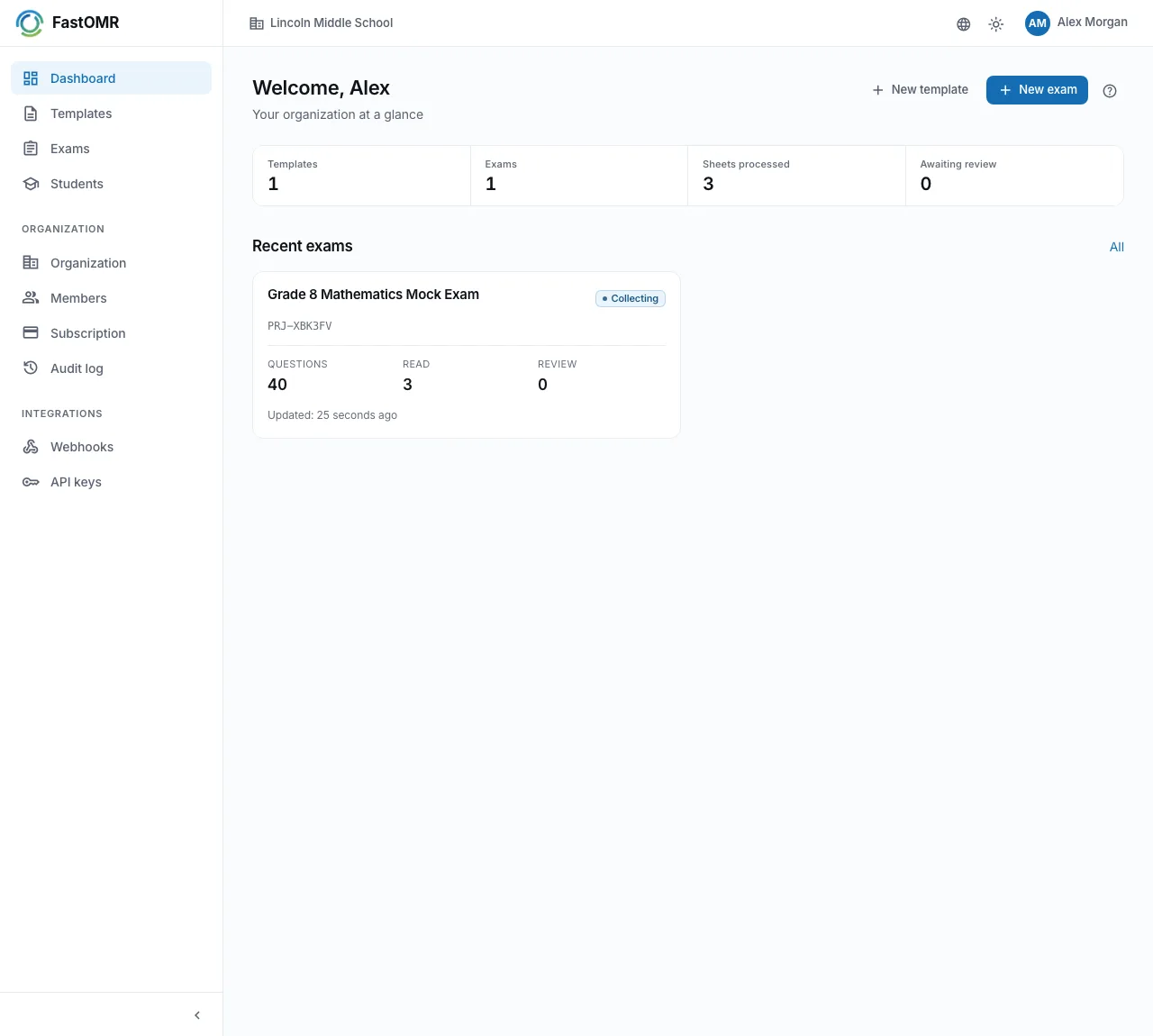
Lists, links and notices#
- Lists remember where you were. The search, filters, order and page of the Templates, Exams, Students and Audit log lists, and of an exam's Results and Attendance tabs, are kept in the browser's address. Opening a record from page three of a search and pressing Back returns to page three of that search; a reload keeps it; and the address, sent to a colleague, opens the same filtered list for them.
- Finding by typing. The time zone, the country and the sheet of an answer key are picked by typing a few letters — any word of the name, in any order, without regard to case or accents ("istanbul", "turkiye").
- Notices. A message at the foot of the screen says whether it is good news, a warning or an error, waits while your pointer or the keyboard is on it, and closes itself after 5 to 10 seconds. After deleting a template or an exam it offers Undo.
- When something fails on the server. The notice ends with a Reference — eight characters — and a button that copies the whole of it. Quote it to whoever runs your installation: it finds that request in the logs. Mistakes of your own (a missing field, a name already taken) carry none.
Last updated:
Could not find what you needed? Write to [email protected] — tell us the screen and what you expected to happen.