
Managing the organization
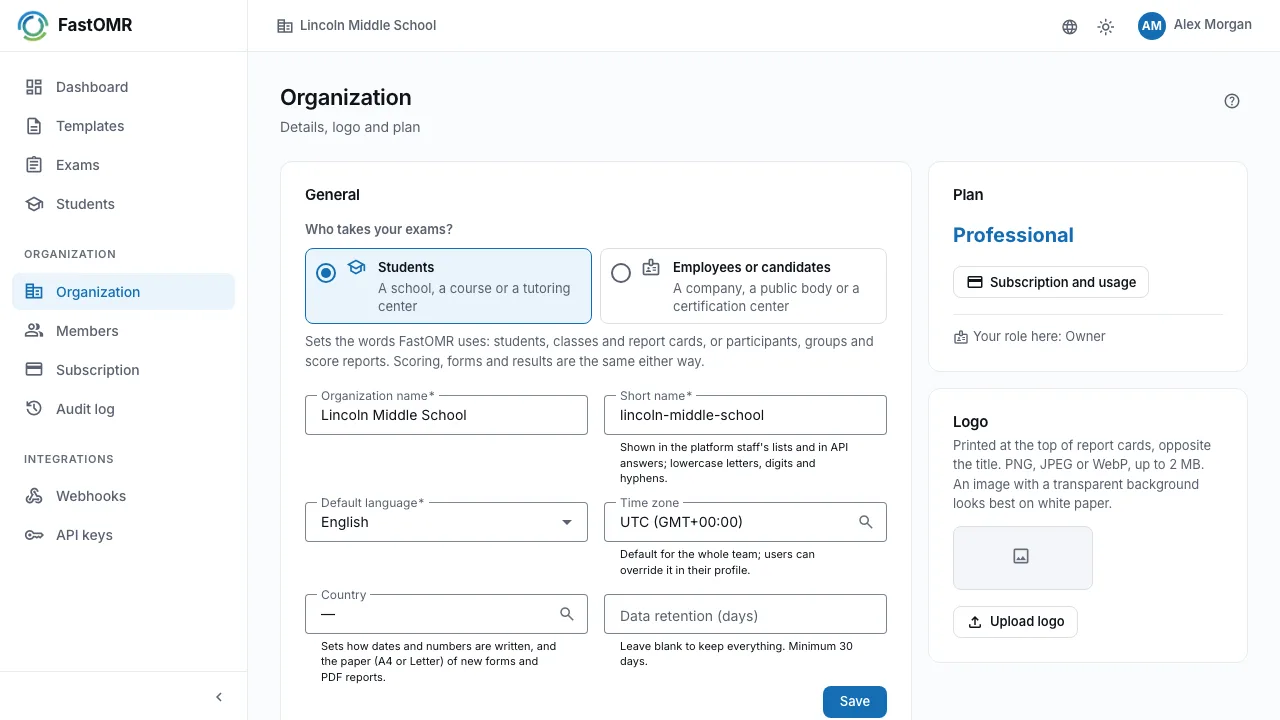
A school or a company
When the platform's staff add an organization, they answer Who takes your exams? for it: Students (a school, a course or a tutoring center) or Employees or candidates (a company, a public body or a certification center). The answer changes words, not features. A company's screens say participant for student, group for class, section for subject, topic for learning outcome and score report for report card, and its files and printed reports follow; its report cards leave the rank off unless asked. The answer can be changed on this screen at any time, and nothing already recorded changes with it.
The organization's country — given when it is added, and changed on this screen — decides the paper a new form and the reports start on — US Letter where offices print on it, A4 everywhere else — and the organization's time zone decides the calendar an exam date is kept in: a date picked by a member abroad is the same day for everyone, on screen and on paper.
Closing, leaving and handing over an organization#
- Closing (the owner). Close organization at the foot of the Organization screen asks for two things a slip cannot produce: the organization's name written out and your password. Its contents are permanently deleted after 30 days; until then only a system administrator can reopen it — not even the owner who closed it. A subscription held by the payment provider is cancelled at the end of the period; to be sure, cancel it from Subscription first. Your only organization cannot be closed here: closing it is closing your account, which is done from the Profile screen (§11).
- Leaving (everyone but the owner). Leave organization at the foot of the same screen takes you out: you lose access to its templates, exams and results; your account and your other organizations stay as they are; the API keys you made there are revoked; an admin can invite you back. The owner cannot leave — they hand the organization on, or close it.
- Handing over. Members → the menu on the person's row → Transfer ownership. It asks for your password and names who receives it. They become the owner and you become an admin; the keys only an owner could make are revoked; only the new owner can hand it back. An account that is suspended cannot receive it.
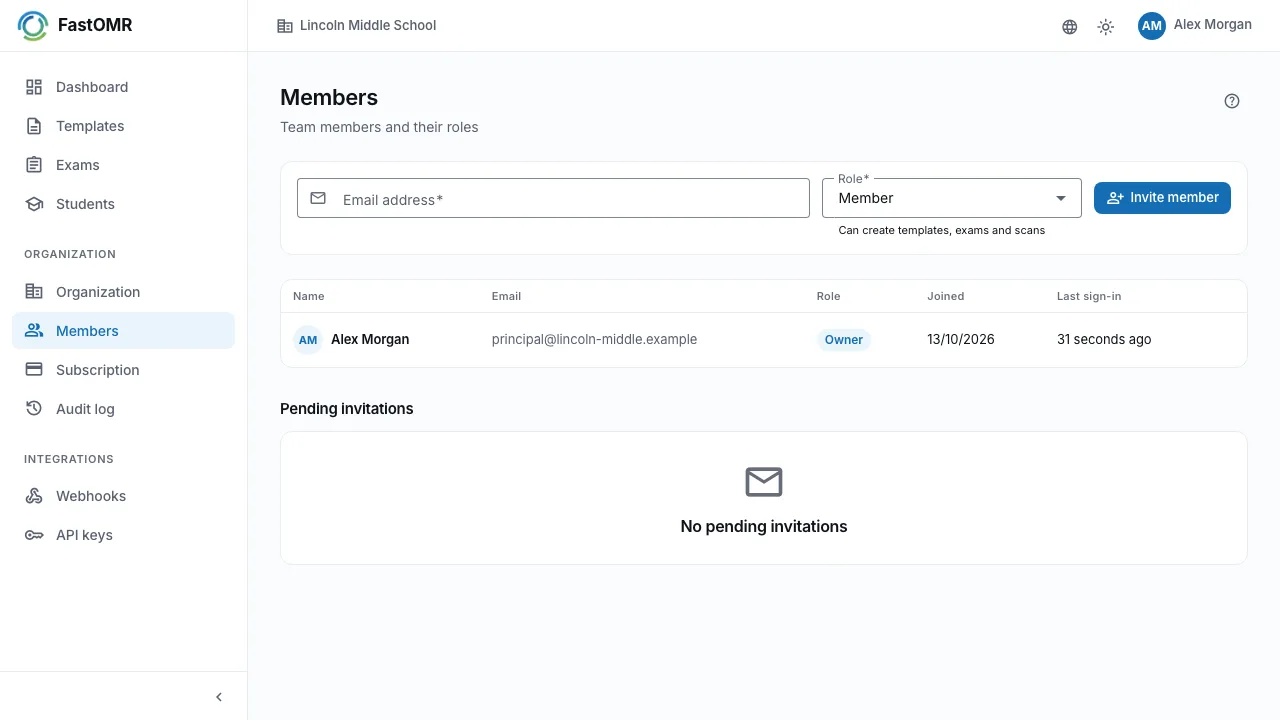
- Nobody changes their own role, and nobody outranks the owner: ownership moves only by the transfer above.
- A role that is lowered takes with it the API keys and webhook endpoints that need more than the new role has.
- Invitations go with their sender's authority: if the sender leaves, is removed or is lowered below what an invitation grants, that pending invitation is withdrawn — the same way a key goes with the person who made it.
Plans and what each includes#
| Free | Personal | Professional | Enterprise | |
|---|---|---|---|---|
| Templates (archived ones do not count) | 1 | 10 | 50 | Unlimited |
| Exams | 1 | 25 | 200 | Unlimited |
| Members (pending invitations included) | 1 | 1 | 25 | Unlimited |
| Extra members, on top of the plan’s own | — | up to 4 | any number | — |
| Sheets read per month | 50 | 1,000 | 25,000 | Unlimited |
| Sheet packs, on top of the month’s sheets | ✓ | ✓ | ✓ | — |
| Storage | 250 MB | 5 GB | 50 GB | Unlimited |
| Pages one upload may carry | 50 | 100 | 200 | 1,000 |
| API keys | — | — | 5 | 50 |
| Webhook addresses | — | — | 5 | 25 |
| Item analysis, reliability, exam summary (PDF) | — | ✓ | ✓ | ✓ |
| Logo on report cards | — | — | ✓ | ✓ |
| Audit log export (CSV) | — | — | ✓ | ✓ |
| Priority support | — | — | — | ✓ |
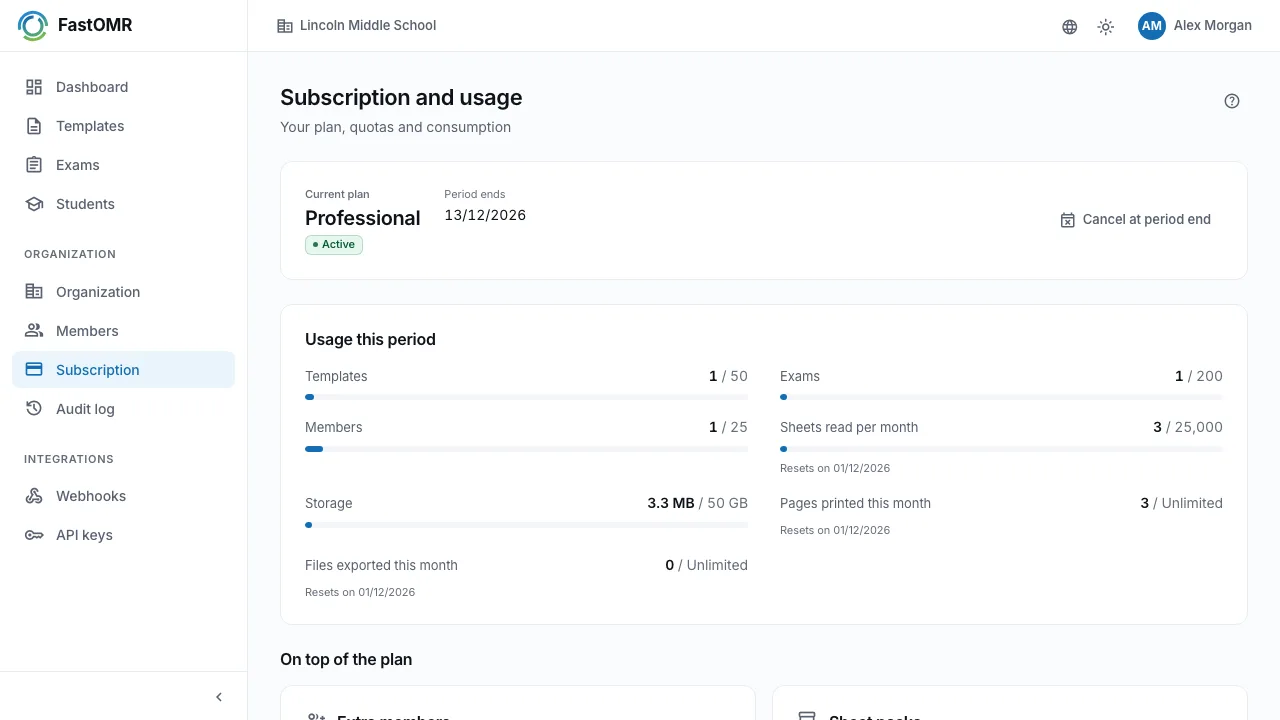
Everything else — designing, printing, scanning, results, report cards, attendance, students, the audit log itself — is on every plan. The Subscription screen shows the same numbers and your use of them; on a school's own installation the limits are the same. Moving to a smaller plan is refused while your use does not fit it. An organization that falls to a plan without API access or webhooks keeps its keys and endpoints, so that upgrading again brings them back, but they are refused until the plan includes them.
Extra members and sheet packs
Two things are added on top of a plan, so that one more colleague or one busy month does not mean the next plan up. Extra members are places beyond the plan's own, kept for as long as they are needed: the Personal plan takes up to four, which makes five people, and the Professional plan any number. A place is given back only once it is empty — the members and the pending invitations must still fit. Sheet packs are sheets bought once: a pack is drawn on only after the month's own sheets are spent, the pack that runs out soonest first, and what is left in it on its last day is gone; a pack bought by card keeps for a year. Both stand on the Subscription screen under On top of the plan, with what the organization holds and, for each pack, how many sheets are left and until when.
Changing the plan
A plan, extra members and sheet packs come through one of two doors, and the screen shows the one that is open. Where the installation sells by card, the card of a larger plan carries Buy, the extra members are set with the − and + buttons beside their price, and a pack is bought with its own button; the payment is made on the payment provider's page. More extra members are charged at once for the rest of the period, and fewer lower the next payment. Where nothing is sold by card — online sales are closed — all three are given by the platform's staff: on the service, the FastOMR team; on a school's own installation, its platform administrator (System administration → Organizations). The cards then carry Write to us where the installation has a sales address. On an installation without a payment provider the owner can also move to a lower plan on this screen, when the organization's use fits it; extra members belong to the plan they were added to, and a plan lowered by hand starts without them.
Where a payment provider holds a subscription, the card, the invoices and cancellation live on the provider's page, opened with the Billing page button; the latest invoices are also listed at the foot of this screen. If a payment cannot be taken, a red notice appears at the top of the screen and the owners are e-mailed: the provider retries for a few days, and updating the card changes nothing else; if it cannot be taken, the subscription ends and the organization returns to the free plan — exams, templates and results stay as they are, only the free plan's limits apply. The Enterprise plan is not bought from the screen; Write to us opens an e-mail to the vendor.
You are told before a quota fills
There are two separate limits, and both raise a "You are close to a limit" notice on the dashboard past 80%: sheets read per month and total storage. The point is not to hit a wall in the middle of exam week.
They are different things. The monthly allowance resets by itself at the start of the calendar month (UTC) — nothing to do but wait, and deleting does not help. Storage accumulates: to make room you delete old exams' scans, or switch on the data retention setting and leave the job to the system. A sheet takes about 1 MB, so every plan holds at least two months of its own monthly sheet allowance.
Whichever limit a stack you upload would exceed, the system refuses before starting and says which — it does not read the sheets one by one and stop halfway, and you are not left with a half-read exam.
What goes, what stays
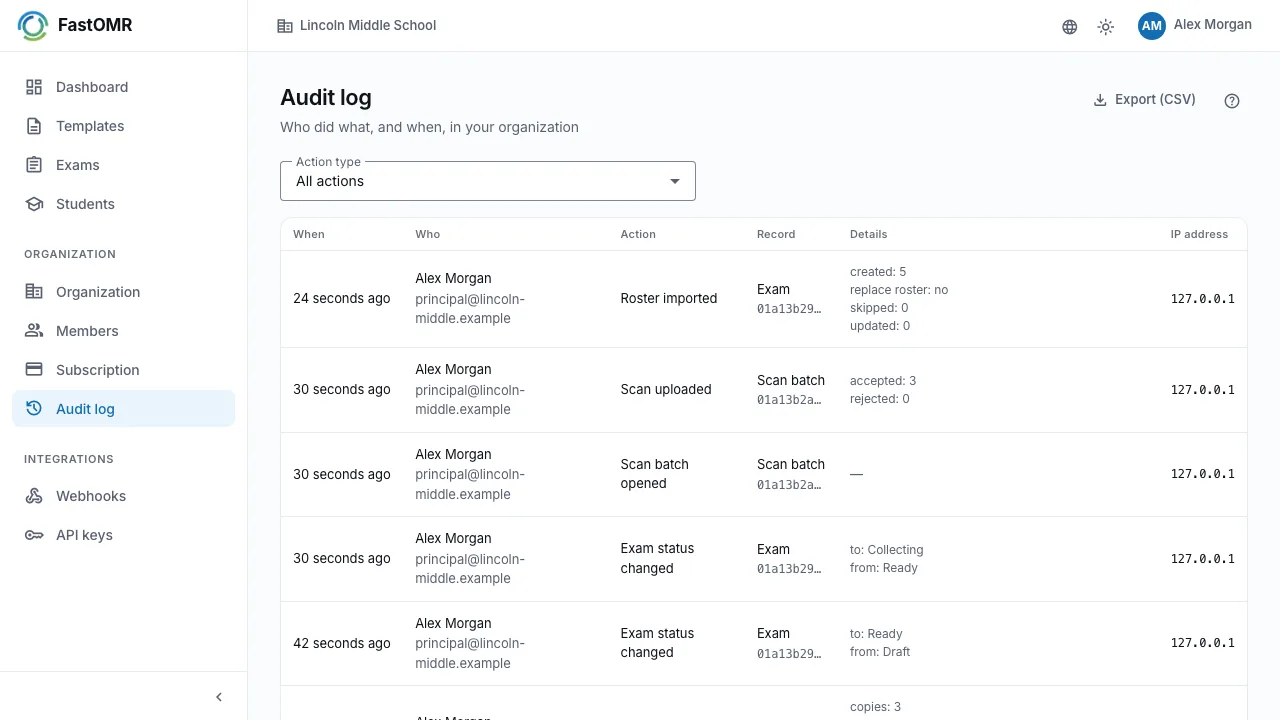
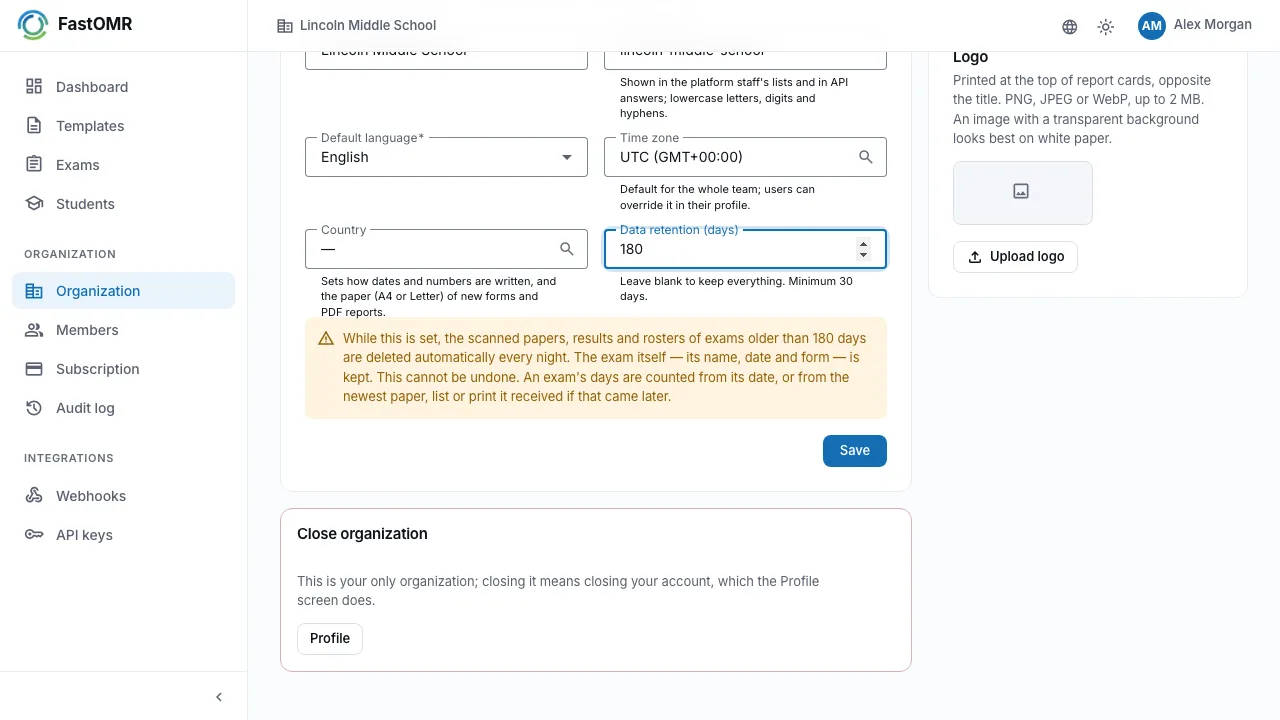
With a period entered, the scanned papers, results and rosters of exams older than that are deleted every night. An exam's days are counted from its date, or from the newest paper, list or print it received if that came later — papers scanned today are kept for the whole period. The exam itself — its name, date and sheet — stays. It cannot be undone.
Before saving, the screen lists by name which exams this setting would clean up tonight; if there is nothing to delete, it says that too. You see what a number will do before, rather than learn afterwards.
Connecting the school's own software — API keys and webhooks — has a chapter of its own: §12.
Last updated:
Could not find what you needed? Write to [email protected] — tell us the screen and what you expected to happen.