
Scanning and uploading the sheets
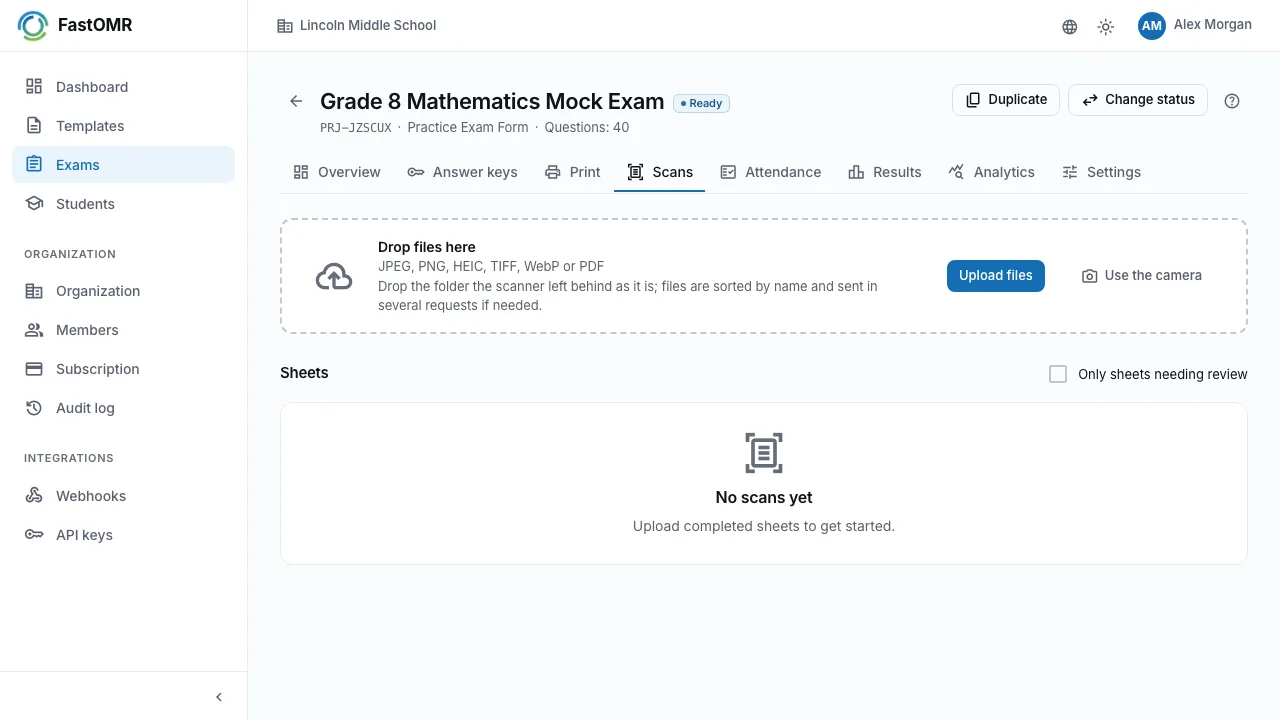
Which files you can upload#
| Format | Note |
|---|---|
| Multi-page scanner output — on a single-page sheet every page is a sheet; on a two-page sheet the pages are grouped in twos in order, and a page left over is not processed and is reported. | |
| JPEG, PNG, TIFF, WebP | The common formats scanners produce. |
| iPhone photos | Pick them straight from the phone's library on the upload screen: the phone hands them over as JPEG. A HEIC file copied to a computer cannot be opened on the server — export it as JPEG, or set the camera to Most Compatible. |
There is no limit on the number of files: the interface sends the stack to the server in requests of 50 files and never splits one student's pages on a multi-page sheet; progress reads "50/120 files uploaded". A file may be at most 40 MB and 300 pages — a class's stack is 60–80 pages; split a stack that scanned the whole school into one PDF. One more limit counts pages: the number of pages one request may read is 25, 200 or 1000 depending on your plan. The interface splits the stack by that too; the limit is felt for one multi-page PDF uploaded on its own, because a PDF's page count is not known when the file is chosen. Over the limit, the system refuses the request before it starts reading — you are not left with a half-read exam.
Batches, and what stops an upload#
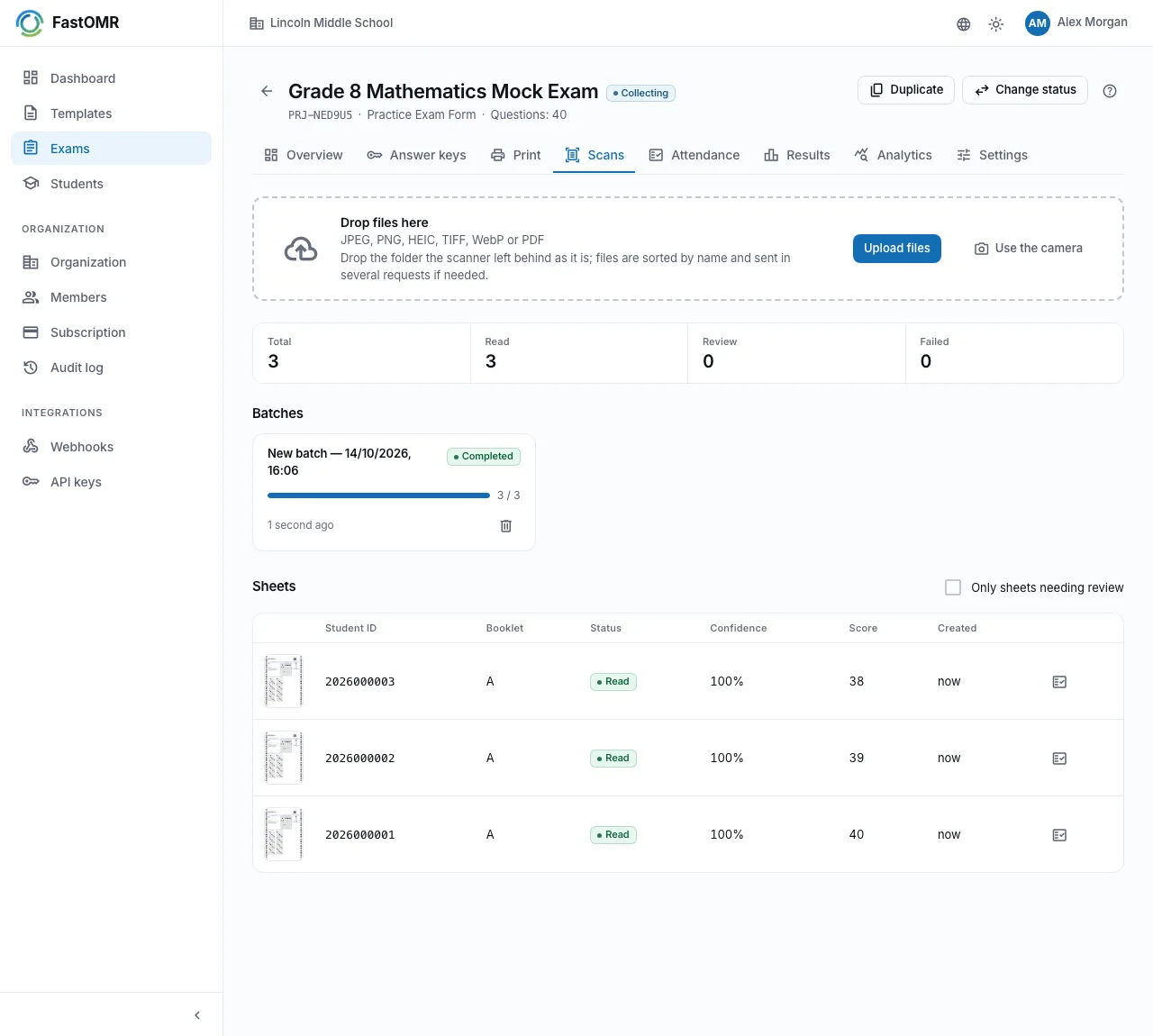
Every upload is a batch. Under the upload area each batch shows its sheets — Total, Read, Review, Failed — and its own status: Uploading, Queued, Processing, Completed or Failed. A batch is named after the moment it was opened; the pencil on its card names it for what it holds — Hall B, 8-A — until the exam is archived. The sheet list's search finds a paper by the number or name read from it, or by the name of the file it came in; Status narrows the list to those Needing review or those that Failed — clicking the Review and Failed counts above does the same. Batch narrows it to one batch's sheets, as does the list button on a batch's card. Review N sheets opens the first sheet waiting, and the review screen's arrows go on to the rest. Reprocess reads sheets again with the exam's current recognition settings — after lowering the filled threshold for a faint-pencil class, say: Needing review and failed reads those again at once, Every read sheet asks first and reads them all; with the list narrowed to one batch, only that batch's. Corrections made by hand are kept, the papers are not uploaded again, and reading a paper again is not charged as another sheet. A line above the list says when some sheets carry a number the roster does not know: they are scored but belong to no student, and Match in attendance leads to them.
- "Scans cannot be uploaded at this stage". A closed or archived exam takes no scans (§4). The notice says which stage the exam is in and offers the button that reopens it. A draft opens on its own with the first upload.
- "The reader is not running". Uploaded sheets wait in a queue and are not read; tell your system administrator. When the worker starts, the queue resumes where it left off.
- "The system is busy right now". While the server is reading other stacks it asks the interface to wait: a request turned away has done nothing, so the interface asks again by itself, waiting a little longer each time, before it shows this message. Nothing is left half-uploaded; try again in a minute.
Files that were not read#
If a file was not read after an upload, it is listed under the upload area by name and with the reason: an unsupported format, an image too large (more than 80 megapixels — scanning a sheet above 600 DPI adds nothing the reader can use, so rescan it lower — or a PDF page larger than about 60 cm), a missing page or a HEIC photo that could not be opened. The list stays until you close it or upload again; that is where you see which paper needs scanning again.
You cannot upload the same scan twice. When a folder is dragged in a second time by mistake, the system recognizes the image already in the exam, says which file it was uploaded as, and does not read it again — no student gets a second result and attendance does not show a "class read twice". A paper that went through the scanner twice is two different images; that one appears on the attendance screen as Read twice and is settled there.
If you photograph with a phone
Without a scanner, the camera works too. Put the paper on a flat surface, get all of it in the frame, cast no shadow and shoot from as directly above as you can. The system straightens skewed and slightly rotated images, but the alignment marks in the four corners of the paper must be visible.
Ignore the orientation. The paper may be upright, sideways or upside down; the system tells which way it is from the position of the QR code and corrects it. Turning the stack to straighten it does nothing but push the paper out of the frame.
Shooting one after another without leaving the page
The Use the camera button on the Scans screen opens the phone's rear camera inside the page. Every shot is added to the strip below; discard a blurred one before uploading, and send them all at once. No round trip to the operating system's file picker for every sheet — thirty sheets, thirty round trips. The corners drawn over the picture show where the page's corners go — a page that fills the frame leaves its bubbles the most pixels — and where the phone's browser offers it, a button switches the camera's light on for a dim room. Nothing is taken until you press Take.
The button appears only on devices that have a camera and allow it. The browser asks for permission once; if you refuse, you can carry on uploading by choosing files.
Taking back a sheet uploaded by mistake
A sheet uploaded to the wrong exam or scanned badly can be removed by the person who uploaded it as long as it has not been scored. Deleting a scored sheet needs an admin — so a result cannot quietly disappear.
Last updated:
Could not find what you needed? Write to [email protected] — tell us the screen and what you expected to happen.